
The first thing you should ask when troubleshooting Email issues is if the client is trying to access the correct inbox.
First, review the MX records for that domain, secondly, double check the link the client is using to access their email.
Clients often get confused when using webmail: they try to login in webmail.com, when they should be using webmail.clientdomain.com or mail.clientdomain.com (you can double check this info with the CNAME records)
To review the MX and CNAME records, you need to access CloudFlare (or your cdn) and go to DNS:
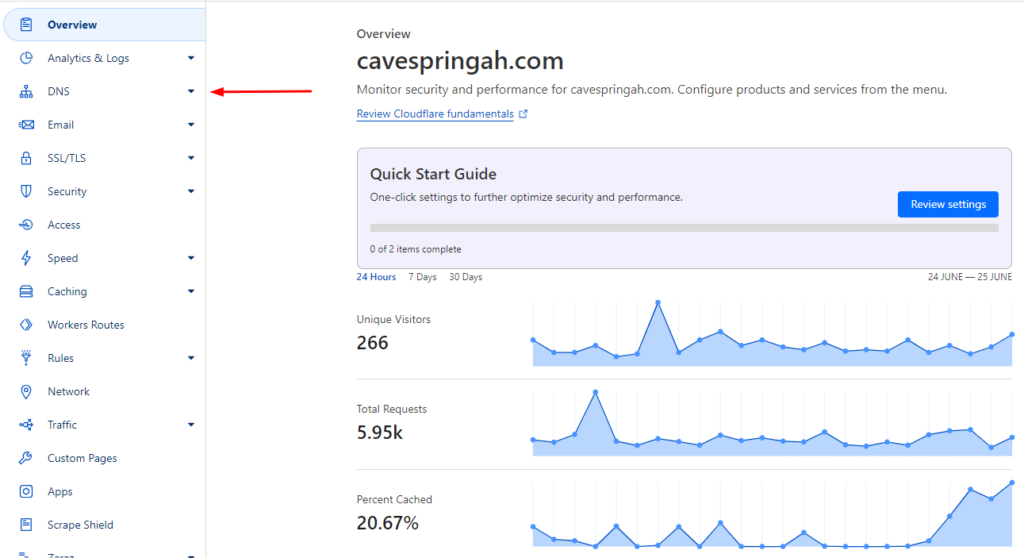
Once in the Records screen, verify the MX and CNAME records to confirm the email provider:
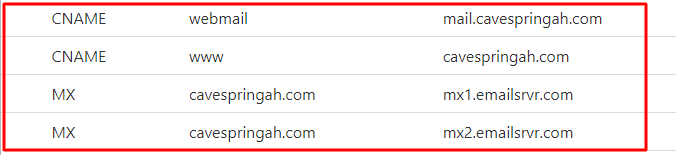
We can see the MX records are pointing to emailsrvr, which, after a quick Google search we can define they are using Webmail.
At this point, you should ask the client to acces their inbox with the following link: mail.cavespringah.com
(make sure they are not trying to access their inbox via a differente domain, for example, trying to access to mail.mtberryah.com)
If a client is hosting their email with a different host than our Google Workspace, troubleshooting and fixing should be handled by the provider, you can open a ticket or ask te client to do so.
Remember to provide the client with the most pertinent information so the provider can fix any issue on their end. DO NOT open a ticket without the proper info, try to always include evidence that the issue is not on our end.
You can share ScreenShots and give some direction to the provider’s support agent, so that way everything can be fixed fast.
Some general steps to troubleshoot Email accounts are:
Verify Server Status: Check if the email provider’s servers are operational. Sometimes, service disruptions can affect email access.
Verify Account Credentials: Double-check the username (email address) and password for correctness. Ensure that Caps Lock is off and that you’re using the correct case sensitivity.
Clear Browser Cache and Cookies: If you’re accessing email through a web browser, clearing the cache and cookies can resolve issues related to loading and accessing the email interface.
Try Another Browser or Device: Sometimes, the issue may be browser-specific. Try accessing your email account from a different web browser or device to see if the problem persists.
Check Email Account Settings: Verify the email account settings, including incoming and outgoing server details, SSL settings, and ports. Incorrect settings can prevent emails from being sent or received.
Check Email Quota: Ensure that your email account storage quota is not full. If your inbox is full, you may not be able to receive new emails.
Disable Browser Extensions: Some browser extensions can interfere with email functionality. Try disabling them temporarily to see if it resolves the issue.
Check Spam/Junk Folder: Sometimes emails may be filtered as spam or junk. Check these folders to ensure that legitimate emails are not being missed.
Test with Another Email Account: Send a test email from another account to see if you can send and receive emails successfully.
Update Software: Ensure that your email client or app is up to date. Updates often include bug fixes and improvements that can resolve issues.
Contact Email Provider Support: If none of the above steps resolve the issue, contact your email provider’s support team for assistance. They can provide specific troubleshooting steps tailored to their service.


