
Changing the Database password is useful for accessing the page’s administrator. First, you need to verify which host the page is on (Vetcelerator pages are found on Hostinger).
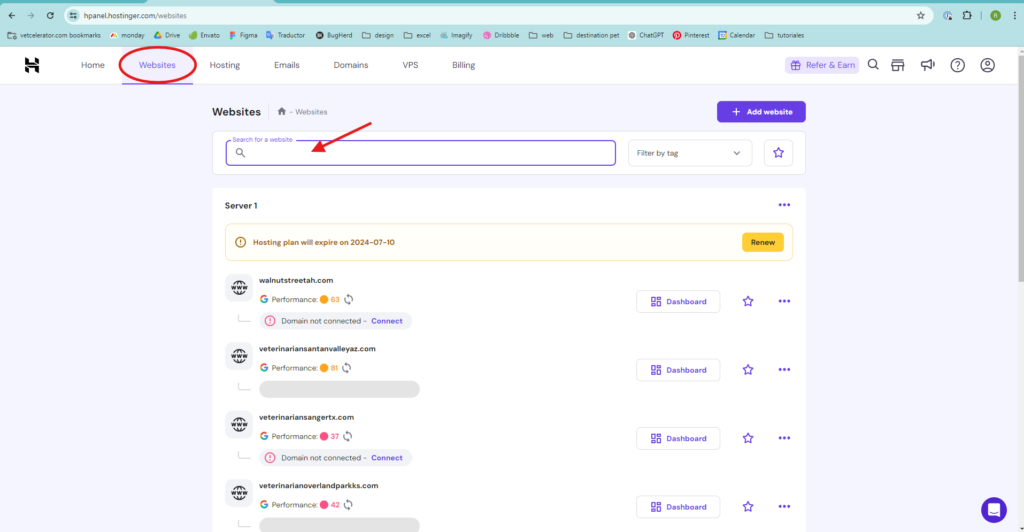
- Log in to Hostinger and click on Websites.
- Find the domain for which you will change the password and go to the Dashboard.
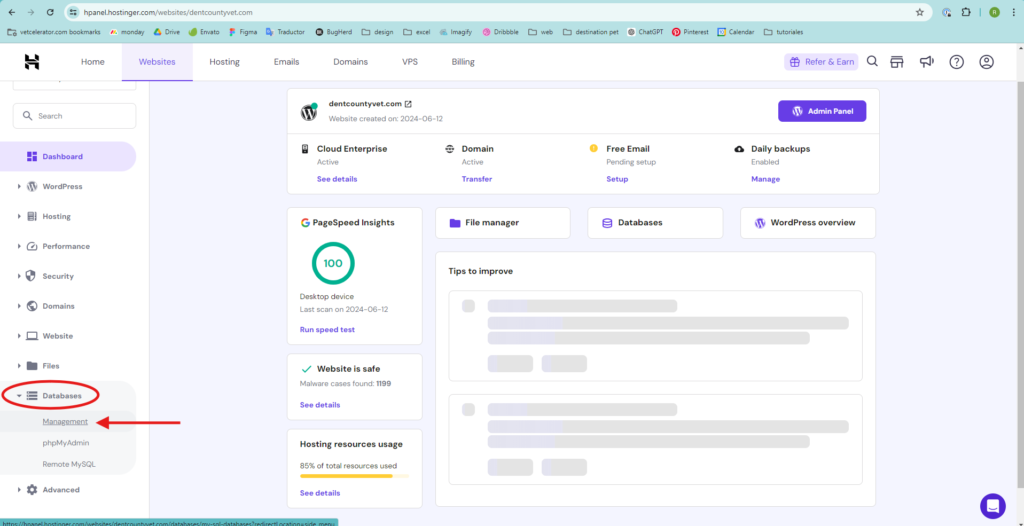
- On the bottom left side, find Databases and click on Management.
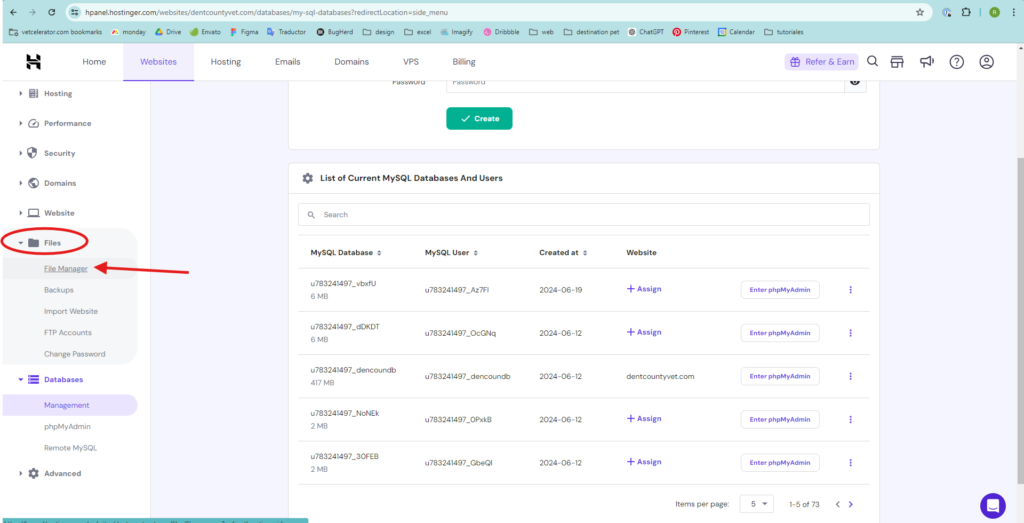
- Most pages have multiple databases. To find the correct one, go to Files and click on File Manager, then on Access files of “yourdomain.com” (this will take you to another page where all the files are displayed).
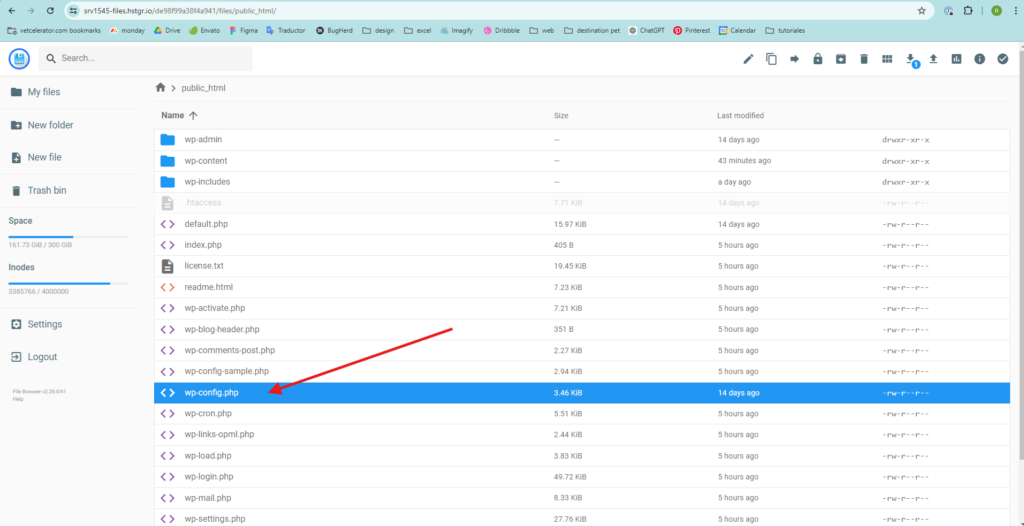
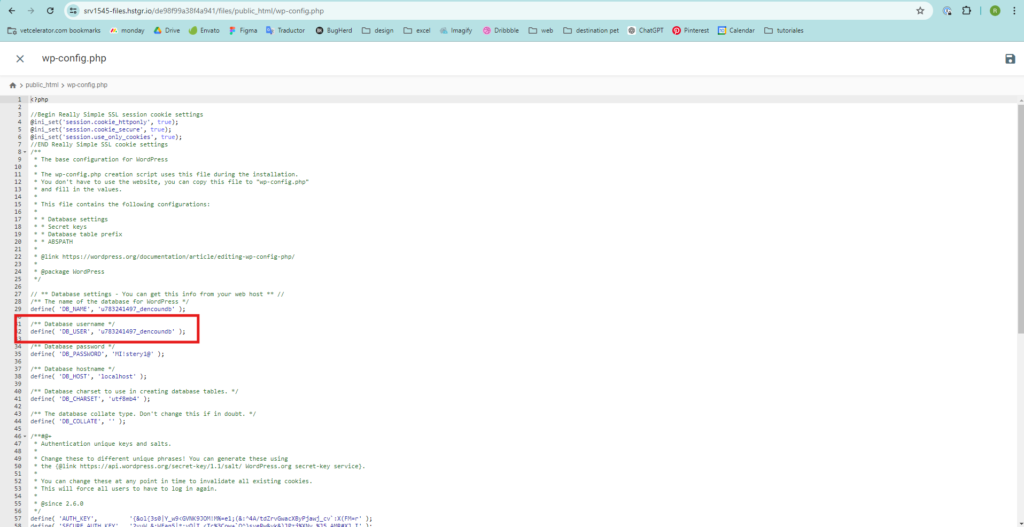
- Click on the public_html folder and open the wp-config.php file or configuration.php file (if the page is on Joomla!).
- Find the Database username, which you can locate in this way.
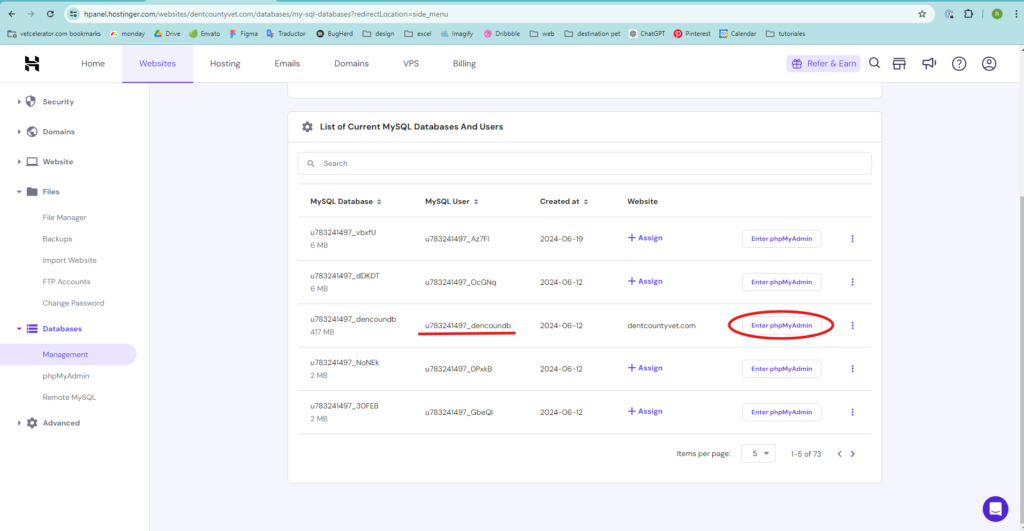
- After knowing your database, go back to Databases, then to Management, and click on “Enter phpMyAdmin.”
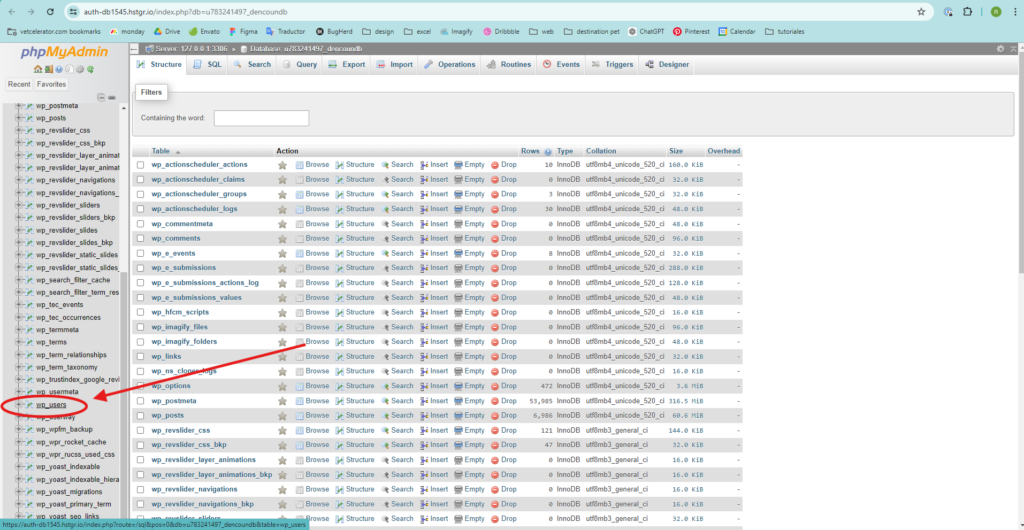
- It will direct you to phpMyAdmin. On the left menu, find “wp_users” and click on it.
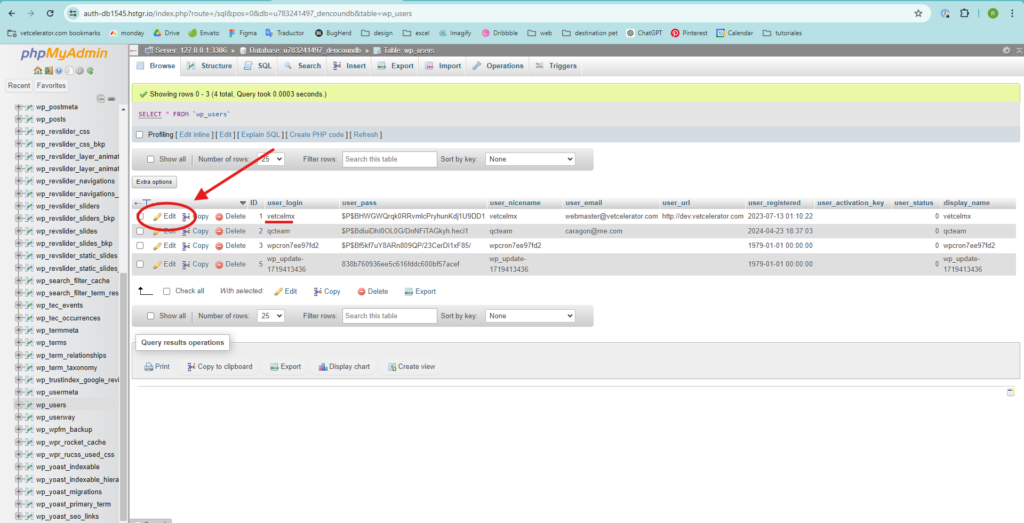
- Find the user being used to log in to the website administrator and click on Edit. In the white box next to user_pass, add the new password and select MD5.
- Finally, click on Go, and your password will be changed.
Log back into the page administrator to verify that the new password works correctly.
*Remember to save the passwords in an Excel file or on 1password.com*


