
Sometimes, we need to customize very specific things and the limitations of WordPress builders (Elementor, Avada, Divi) does not present the options to do so.
In this cases we can take advantage of HTML and CSS code.
Imagine we need to change the color of a button and the builder is not giving us the option to do it:

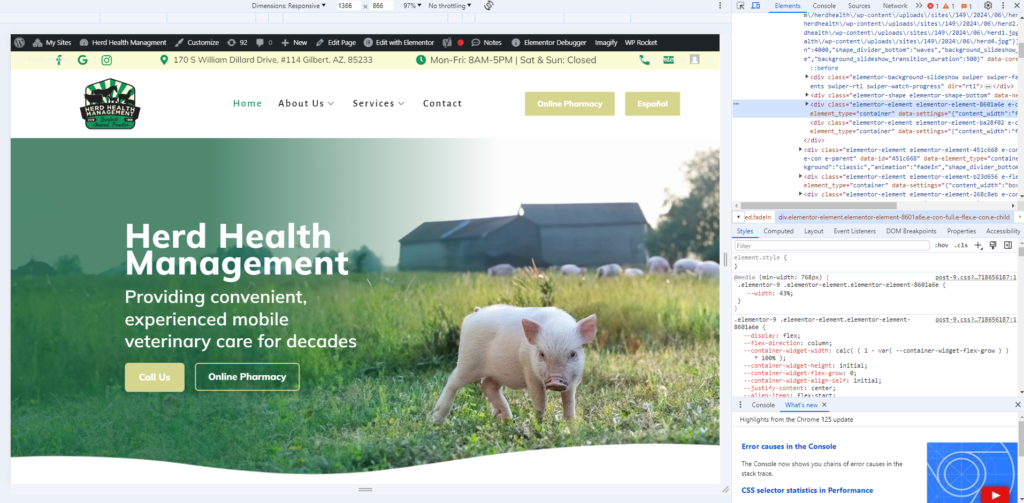
Let’s start by right clicking anywhere on the page and select the Inspect option, you should see the inspector at the right of the screen:
You can press shift + ctrl + c to select an element in the page and inspect it, before you click on it, it will show you the element properties:
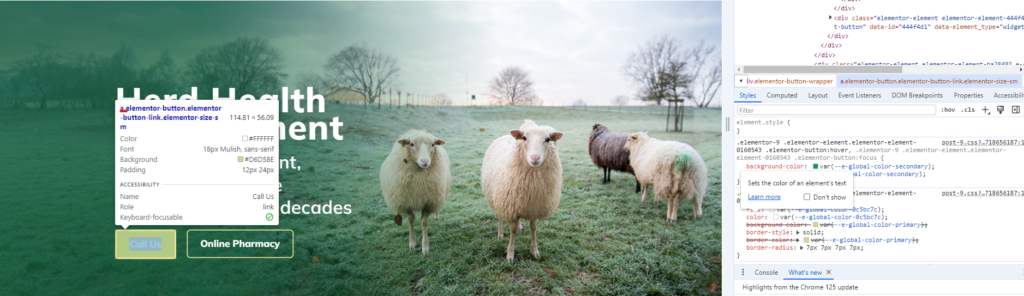
*note: CSS classes start with a “.” and CSS Ids start with “#”
when you see the element you want to edit, click on it and the inspector will show the styling code:
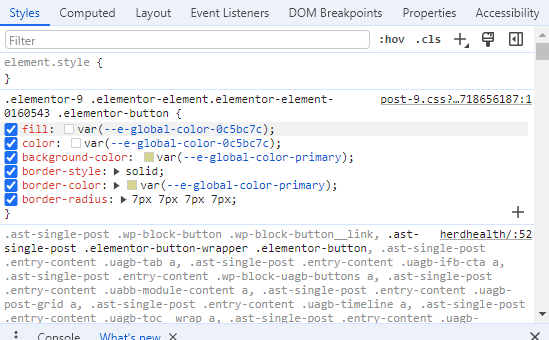
Great! now we need to add our custom code, in this case we want to change the button color, to do so we need to change the button’s background color and we already have a variable for that in the current code:
*note: sometimes the current code does not allow to see changes, in this case, try using !important before “;” in your line of code
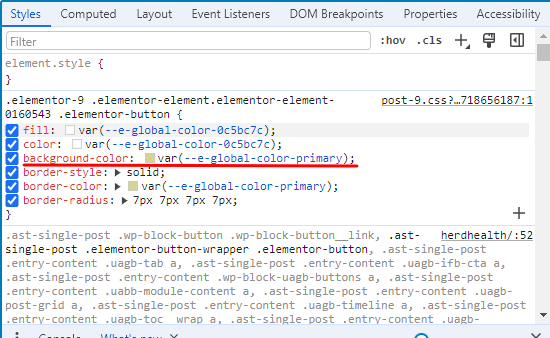
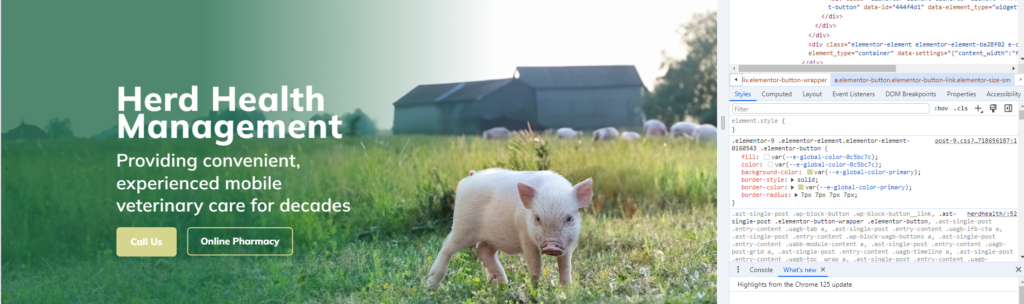
So, let’s change that line of code and see the difference:
Before:
After:
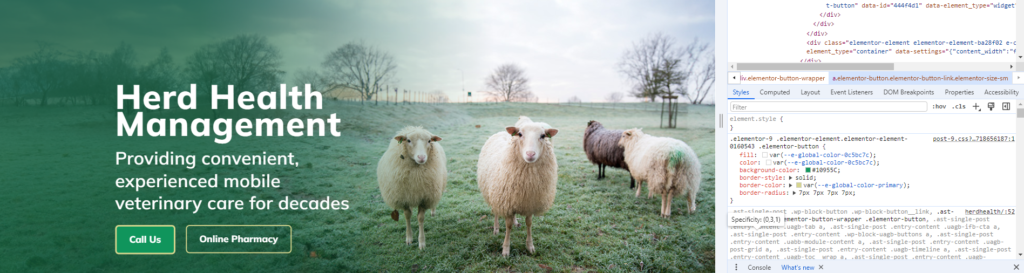
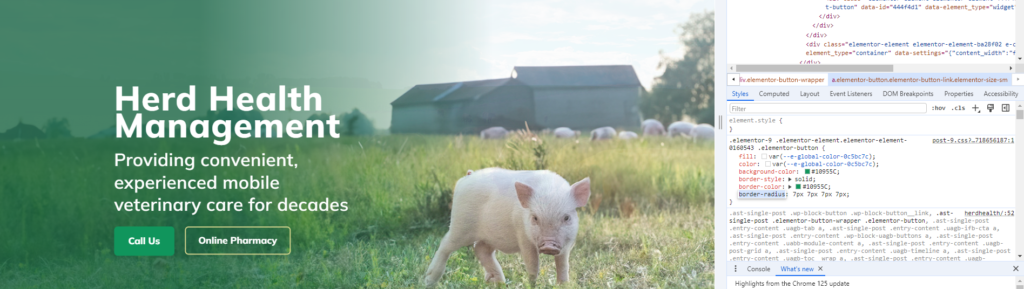
We can see that the button color changed to #10955C when changing the variable, but we see is has a border color aswell, just change that aswell:
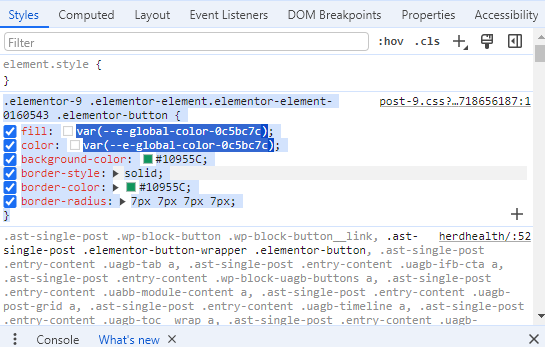
Now, to make this change permanent (because right now, if you refresh the page changes will dissapear) you need to copy the code and put it in your theme options:
Now, go to your WordPress builder of choice (Elementor, Avada or Divi) and follow the instructions:
For elementor:
There are two main ways to write CSS in elementor, one is the Astra theme and the other one is with Elementor pro “Custom CSS” feature:
Astra theme:
Click on Customize:

Click on “Additional CSS”:
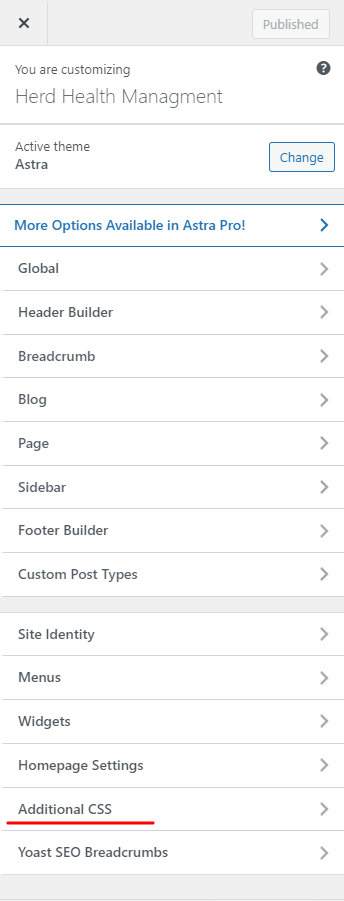
Now you can write your code in the left sidebar:
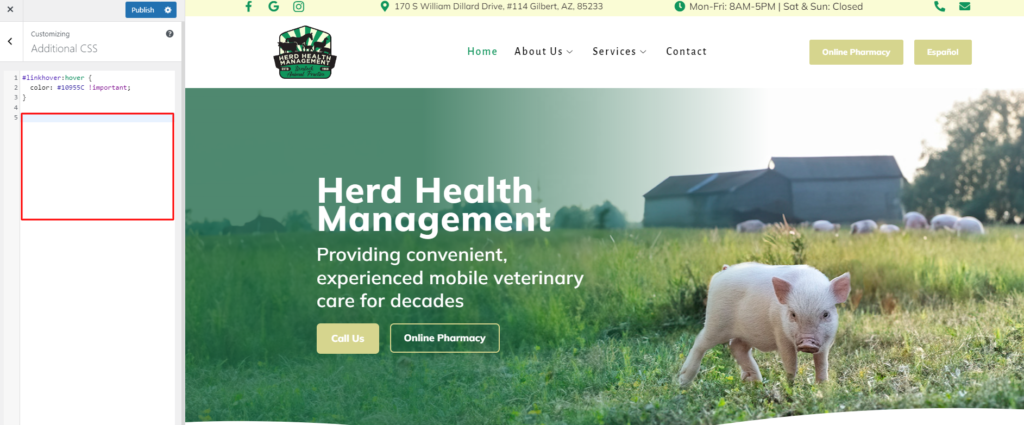
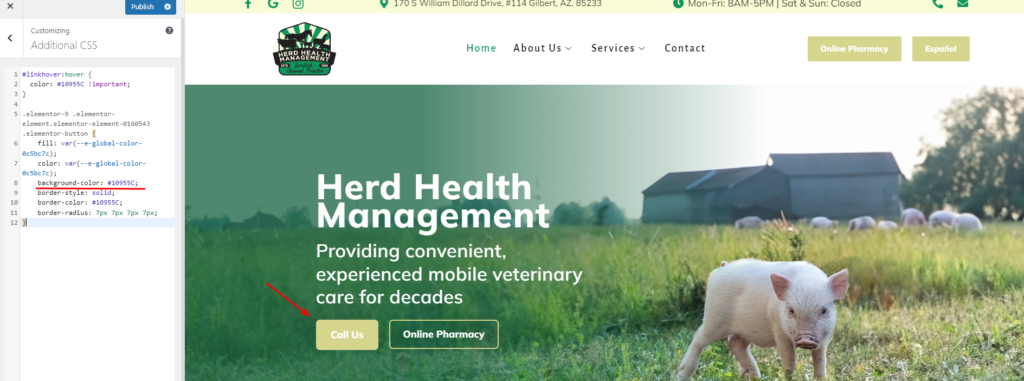
As you can see, we pasted the code and the button did not change color, in this case we need to use !important:
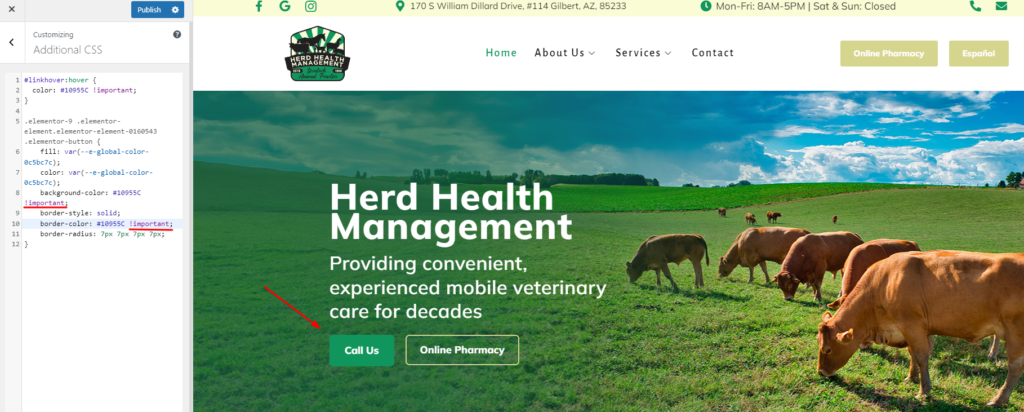
This is how we can customize our WordPress website using CSS in the Astra Theme.
Elementor “Custom CSS” feature:
Click on “Edit With Elementor”:

Select the button you want to edit:
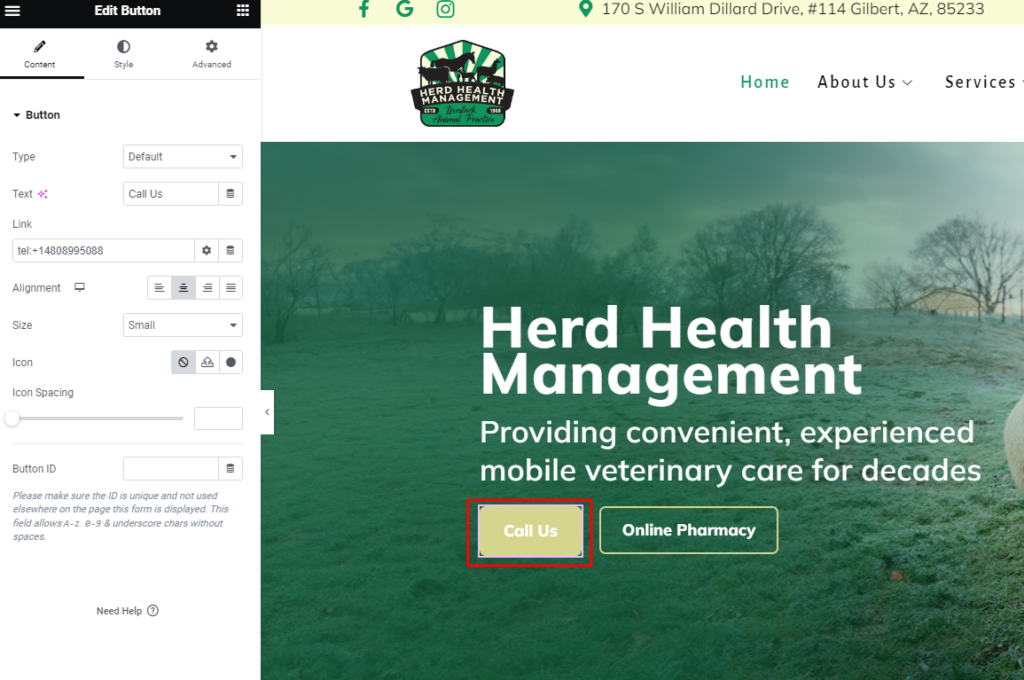
Click on “Advanced”:

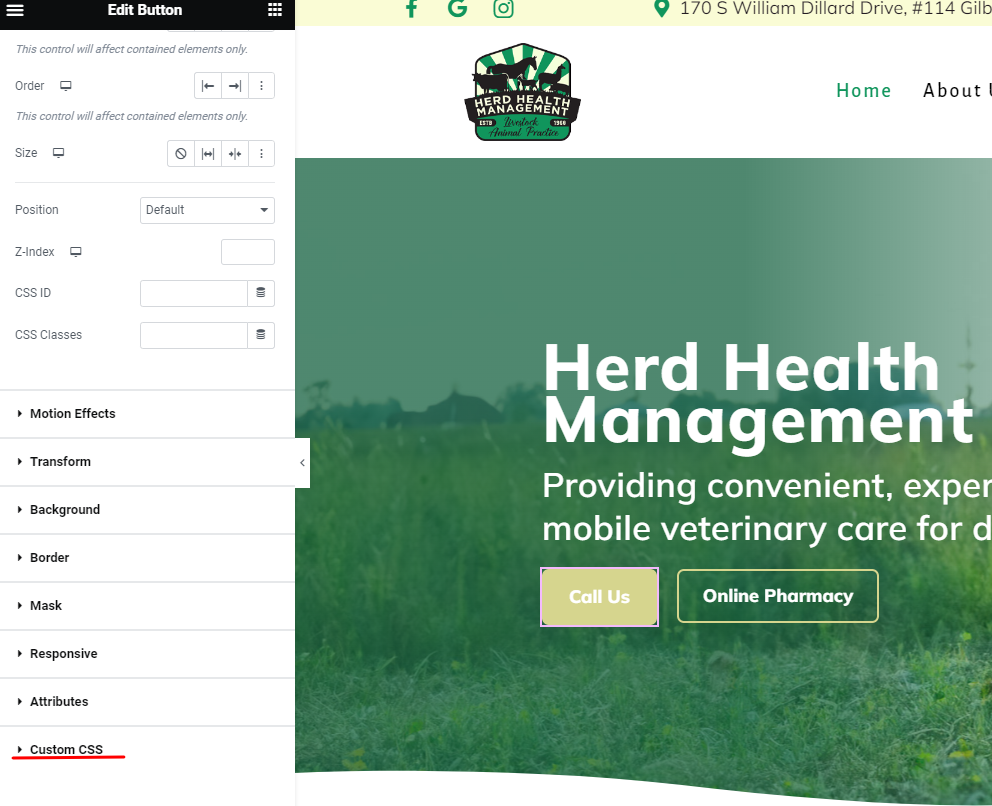
Scroll down to the bottom and click on “Custom CSS”:
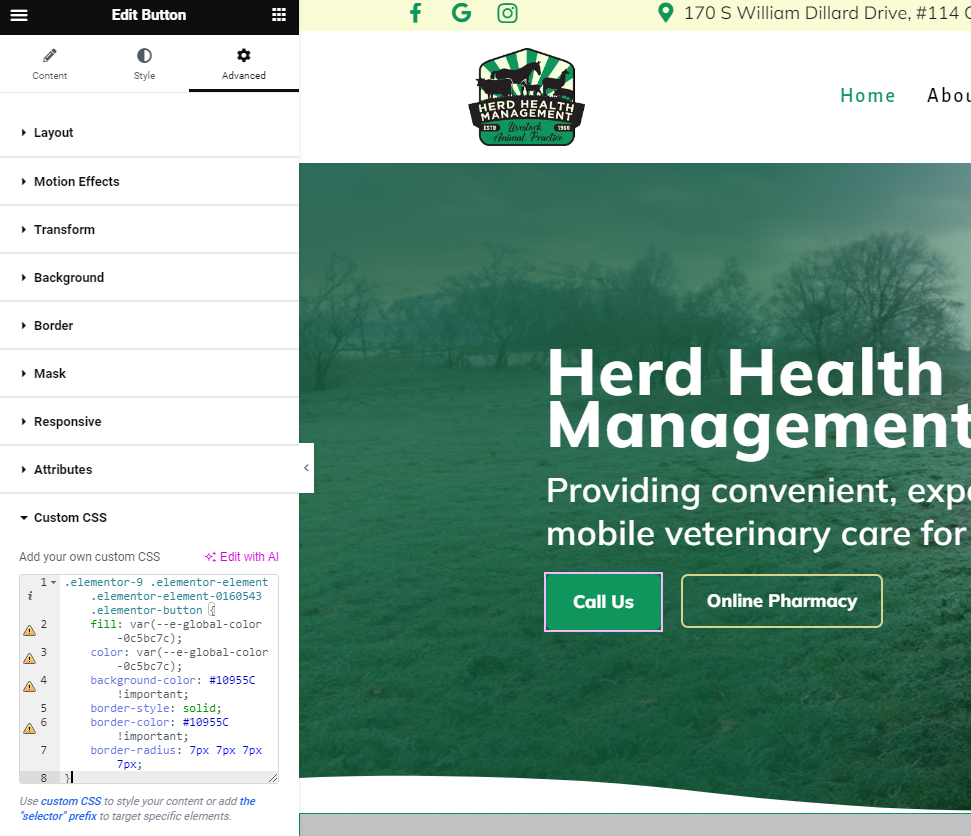
Add your copied code:
*note: remember to use !important
CSS in DIVI builder:
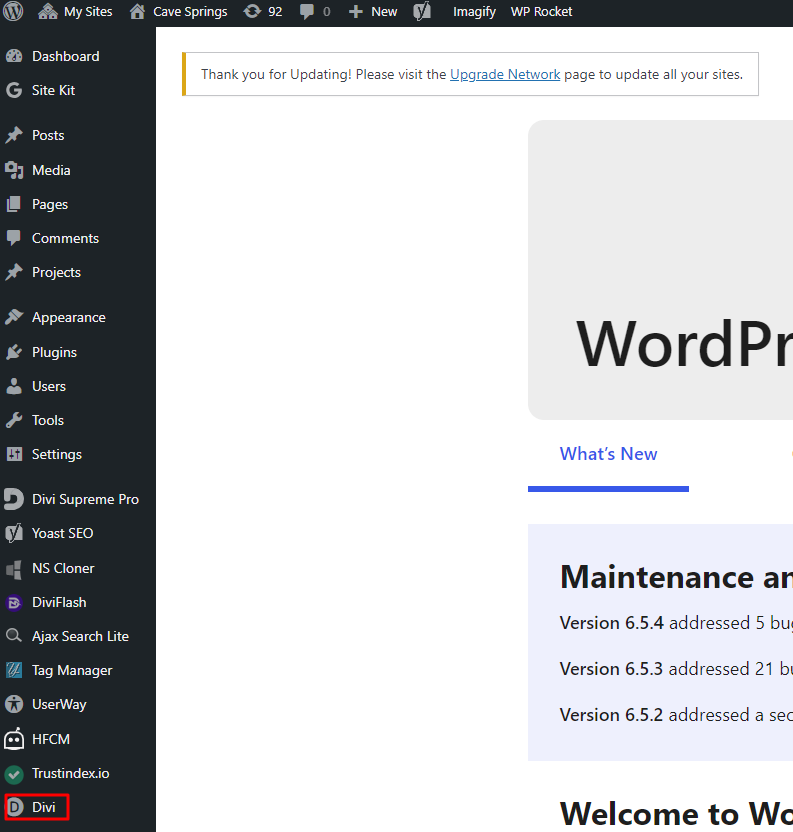
Go to your WordPress Dashboard:

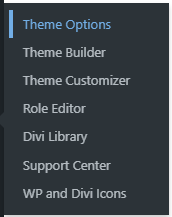
Now go to Divi – Theme options:
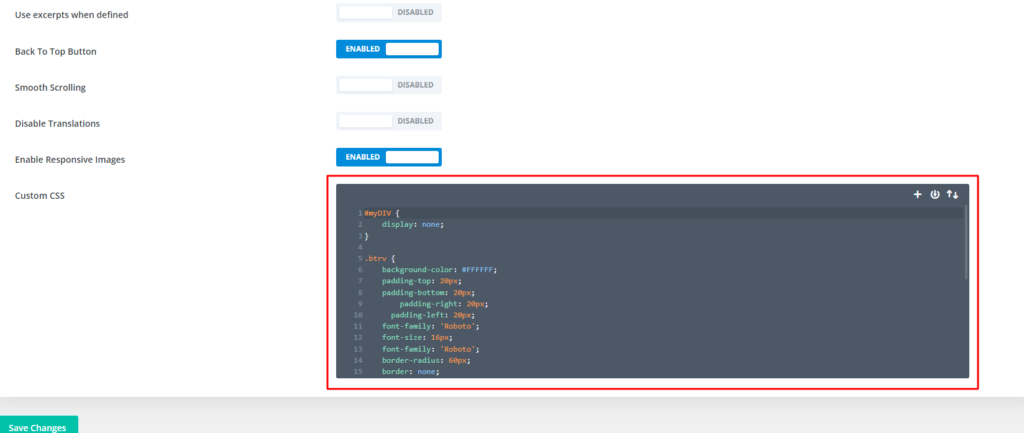
Now, scroll all the way down and you should see the code editor:
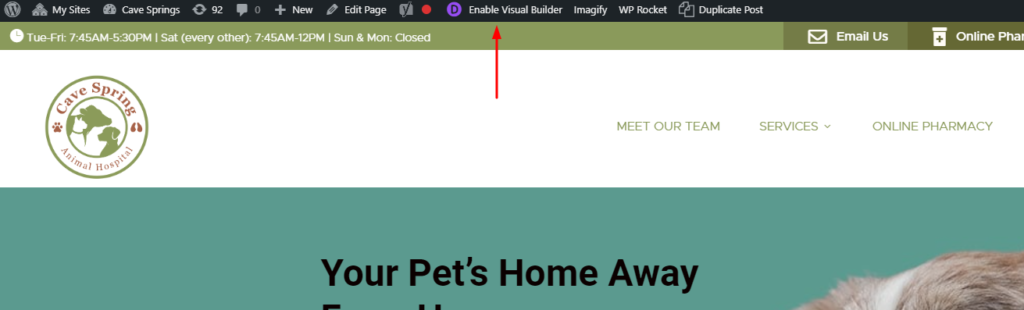
There ir anothe way to add CSS to your Divi website, and that is really similar to Elementor:
Click “Enable Visuel Builder”:
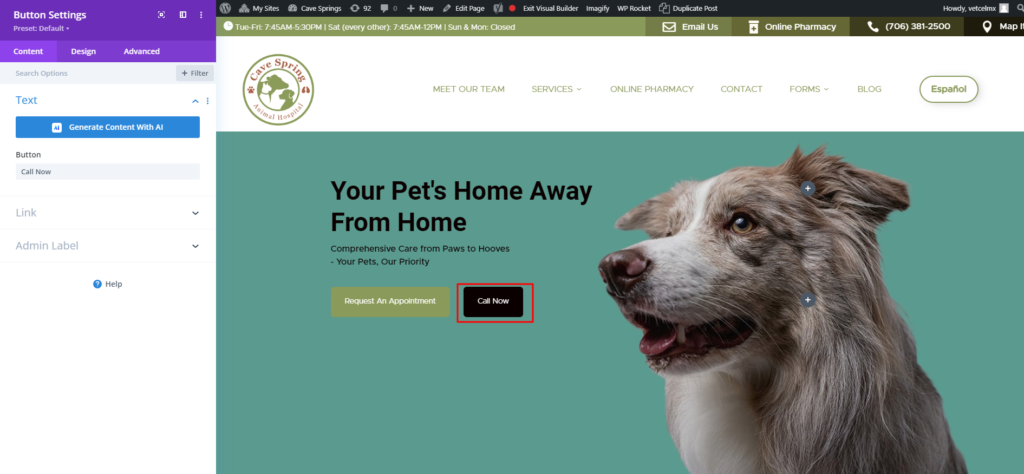
Click on the button you want to edit and then to the cog wheel, you should see the editor now:
Click on “Advanced”:
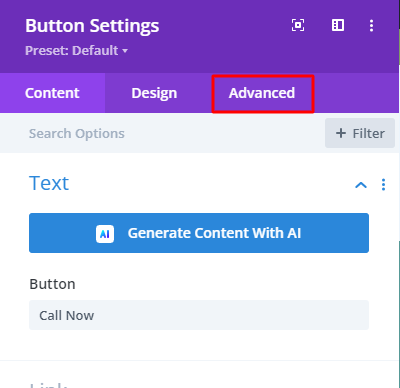
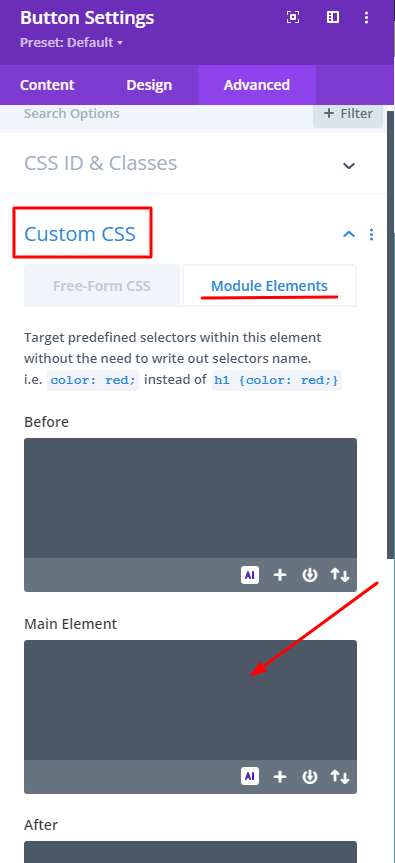
Now go to “Custom CSS”, if asked, select “Module elements” and you should see the code editor now:
Avada Theme:
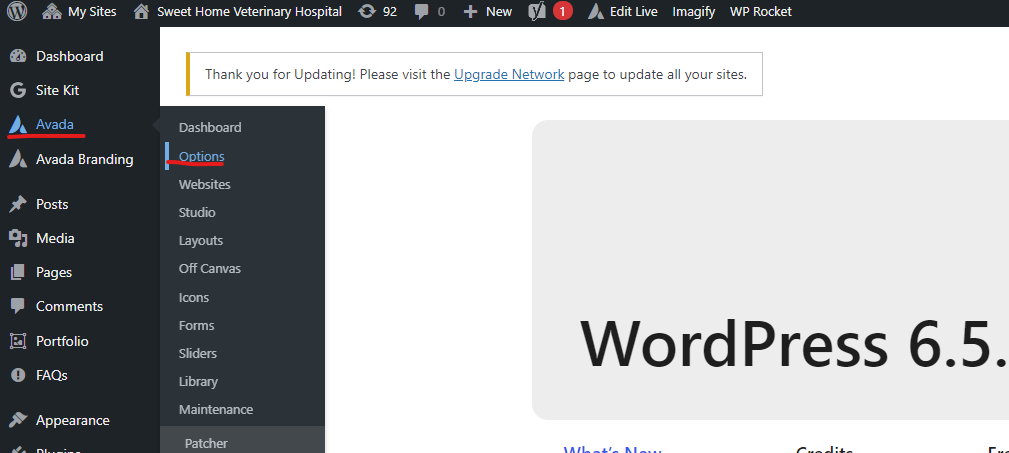
To find the code editor in the Avada theme builder, go to Dashboard – Avada – Avada Options:
Scroll down until you see “Custom CSS”:
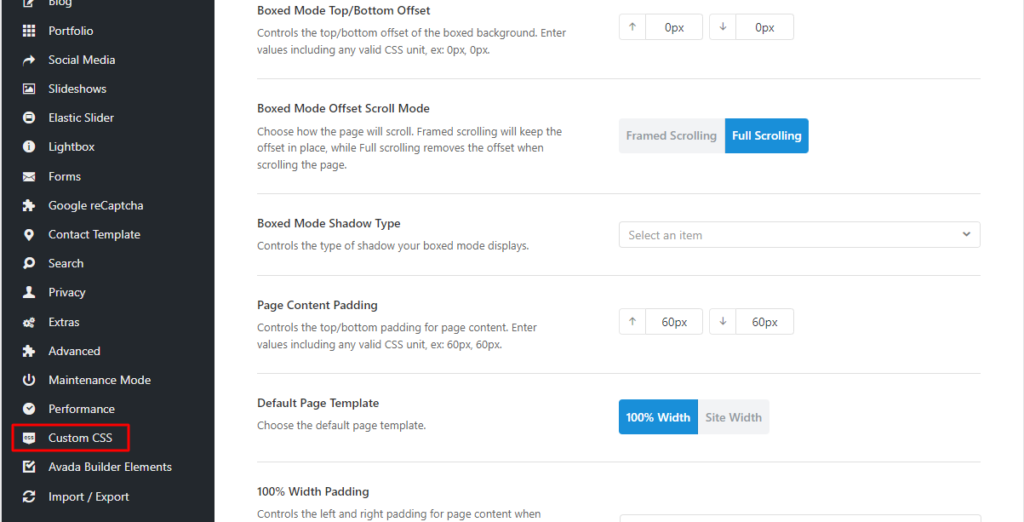
There you go, you can add your custom CSS now.
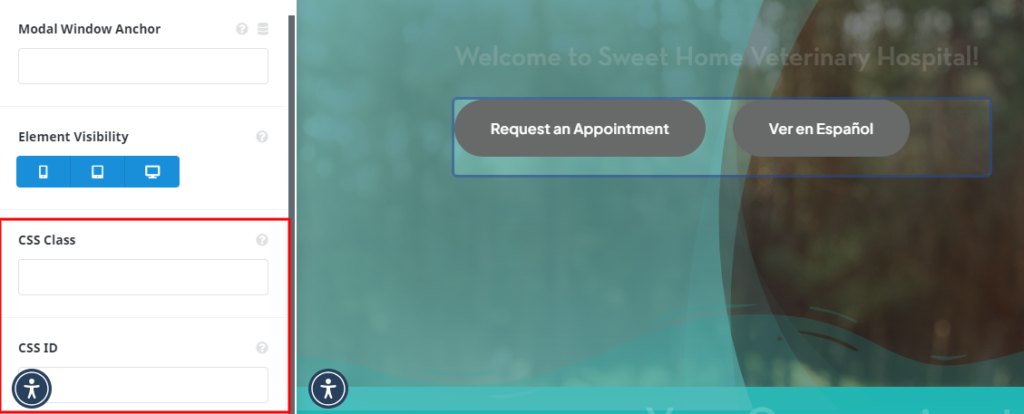
Additionally, you can set custom classes and ids to any element you can create in Avada, and target the custom class or id with “.” or “#”:
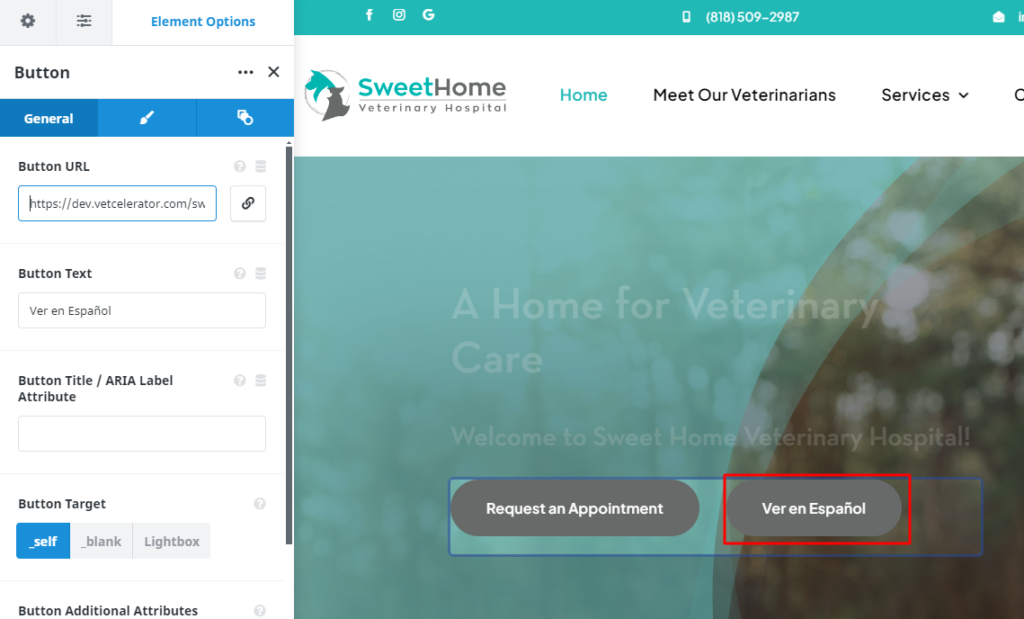
Select any element in your website:
Scroll all the way down in the editor so you can see “CSS class” and “CSS id”:
This is how you can add CSS to any website built in WordPress.


