
Connecting a domain to a hosting service involves linking the domain name to the server where your website files are hosted. Here’s a step-by-step guide:
1: Choose a Hosting Provider
Select a Hosting Plan: Choose a hosting provider that meets your needs (shared hosting, VPS, cloud hosting, etc.).

Obtain Name Servers: Upon signing up, your hosting provider will assign you a set of Name Servers (e.g., ns1.example.com, ns2.example.com).
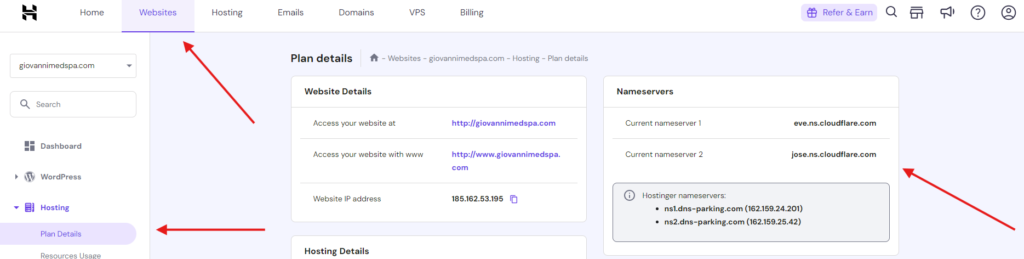
2: Update DNS Settings
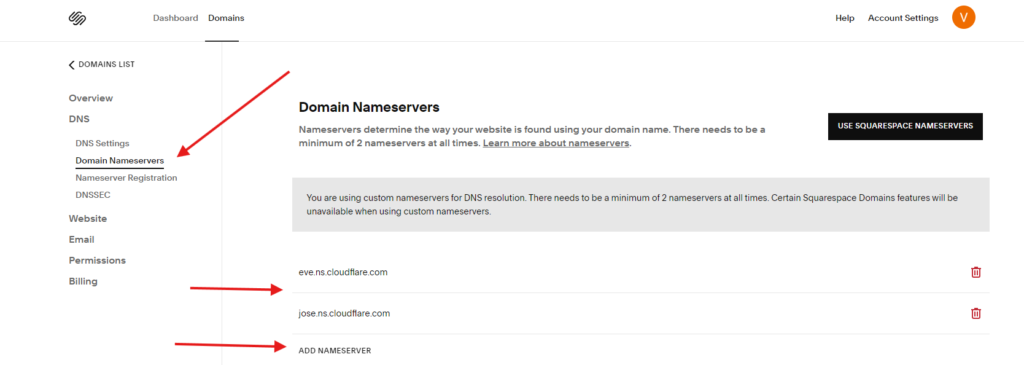
Log in to Domain Registrar: Access your domain registrar’s account (where your domain is registered).
Find DNS Settings: Look for the option to manage DNS settings or name servers for your domain.
Enter Name Servers: Replace the existing name servers with those provided by your hosting provider. Save the changes.
3: Propagation Period
Wait for Propagation: DNS changes may take some time to propagate worldwide (up to 48 hours). During this period, your website may be intermittently unavailable or show the old site.
4: Verify Connection
Check DNS Propagation: Use online tools like “DNS Propagation Checker” to verify if your domain name resolves to the correct IP address associated with your hosting.
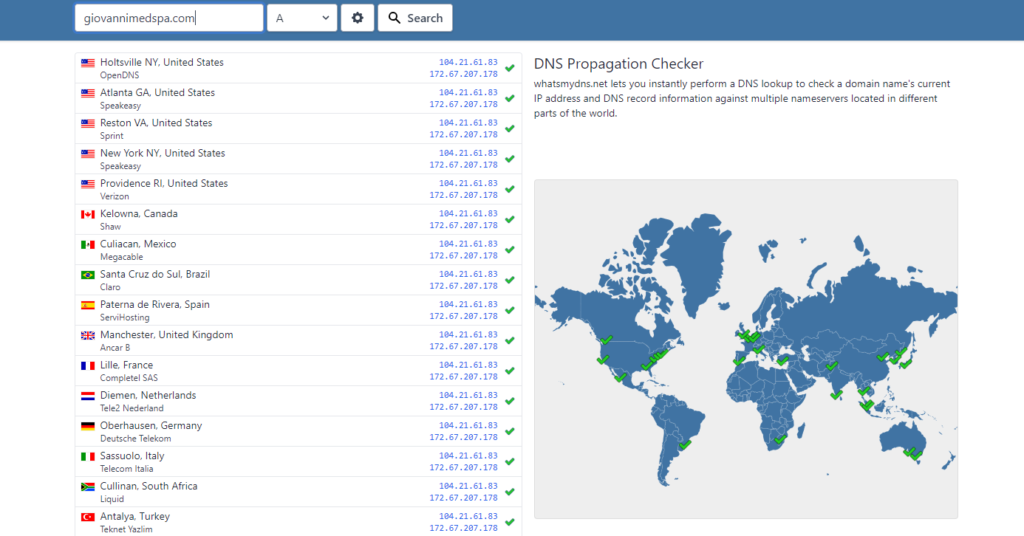
Test Website: Visit your domain in a web browser to confirm that it correctly displays your website hosted on the new server.

5: Additional Configurations
Email Settings: If you have email associated with your domain, configure MX records provided by your email hosting provider.

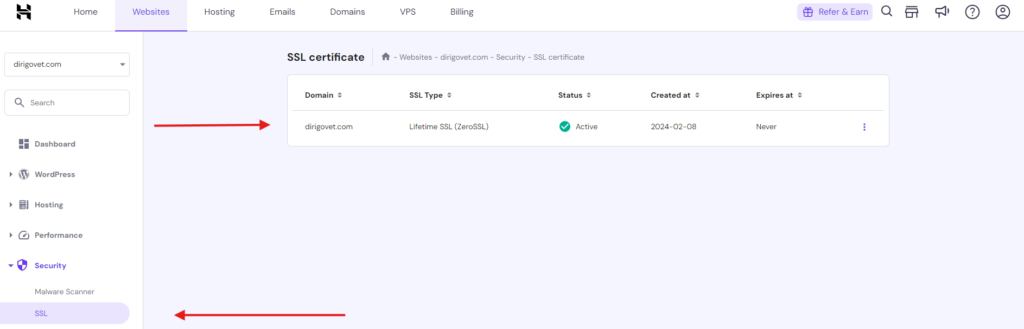
SSL Certificate: Install an SSL certificate if needed for secure HTTPS connections. Some hosting providers offer free SSL certificates through Let’s Encrypt.
Tips:
Clear Browser Cache: After making DNS changes, clear your browser cache or use incognito mode to ensure you’re viewing the latest version of your website.
Contact Support if Issues: If your website doesn’t load or if you encounter any issues, contact your hosting provider’s support team for assistance.
By following these steps, you’ll successfully connect your domain to your hosting service, making your website accessible to visitors using your domain name.


